![TAL_logo.png]](https://help.talention.com/hs-fs/hubfs/TAL_logo.png?height=40&name=TAL_logo.png)
Access the list of Requisitions
Under the “Requisitions” menu item, a centralized overview of all created requisitions is available.

Using the “+” icon on the left-hand side, filters can be added to refine the list and improve clarity. In addition, the table columns can be customized individually by selecting the gear icon in the upper-right corner.

A configuration view opens where visible columns can be removed by clicking the  -icon. Available columns can be added by dragging them into the visible columns area. Any changes must be saved by clicking the “Save” button.

Create a requisition
To create a requisition, click the  icon in the upper-right corner of the “Requisitions” menu.

A window opens in which the details for the new requisition must be entered.
| Title | The title of the requisition, used for orientation and identification. |
| Internal Code | An internal reference code that allows colleagues to clearly identify the requisition. |
| Requirement Profile | Defines the required qualifications and criteria for potential candidates. |
| Expected Start Date | Specifies the anticipated start date for the position. |
| Status | Sets the current status of the requisition. Available options are Draft, Open, On Hold, Closed, and Cancelled. |
| Assignee | The person responsible for managing and overseeing the requisition. |
| Position to fill | Indicates how many vacancies are covered by this requisition. |
| Compensation Remarks | Specifies any compensation-related information or benefits offered to potential candidates. |
| Recruiting Budget | Defines the budget allocated for advertising and recruiting for this position. |
Once all required fields have been completed, the requisition can be saved by clicking the Create button.

After creation, the requisition can be accessed from the general overview with a single click. Opening the requisition from the overview allows previously entered information to be reviewed and edited.
Approving Requisitions
To start the approval process for a requisition, select the desired requisition from the overview by clicking on it.

In the right-hand panel, a reviewer can then be added under “Approval Process”.
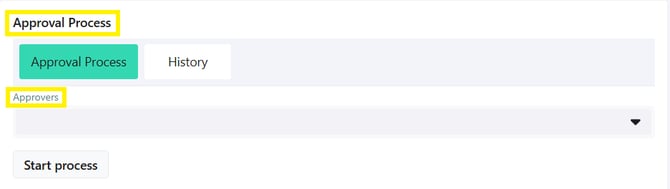
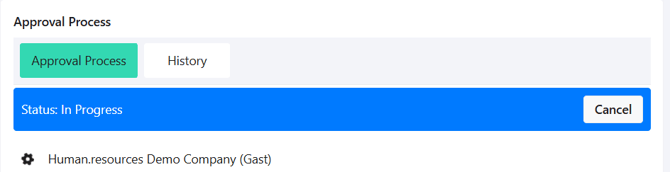
Both existing Talention users and newly created users can be assigned as reviewers. Clicking “Start Process” initiates the approval workflow. The overview is updated accordingly and indicates that the requisition is currently under review.
Once the assigned reviewer logs in to Talention, the requisition can be either approved or rejected.
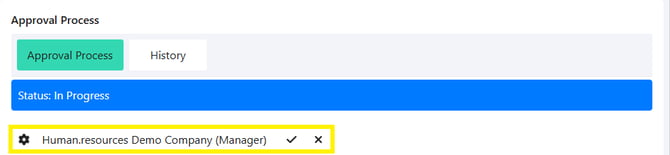
When selecting an option, an optional comment can be added before the decision is finalized.
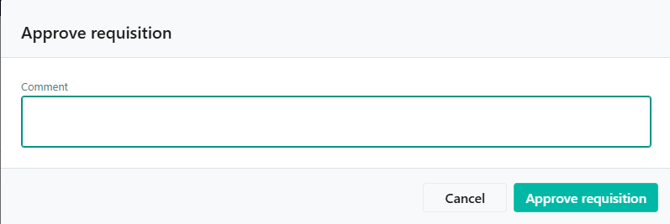
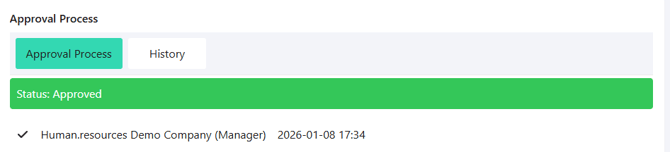
After approval, the status of the requisition is set to “Approved”.
Alternatively, the requisition can be marked as “Rejected”.

All actions taken by the reviewer, including timestamps, are recorded and can be viewed in the History section at any time.