![TAL_logo.png]](https://help.talention.com/hs-fs/hubfs/TAL_logo.png?height=40&name=TAL_logo.png)
To edit existing Web Exposé templates or create new ones, the Customer Success Manager or the Support Team must currently be contacted via email at support@talention.com
Creating a Web Exposé
To create a Web Exposé for a candidate, first open the candidate profile. Then select the “Web Exposé” section within the candidate profile.

If a Web Exposé has already been created or saved as a draft for this candidate, it will appear in the overview.
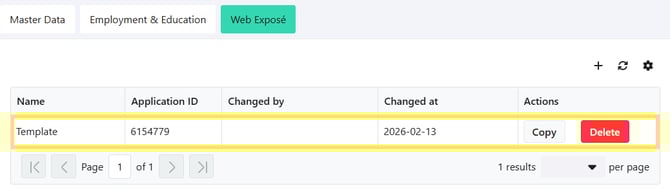
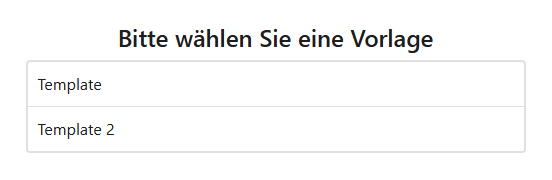
To create a new Web Exposé, click on the plus icon in the overview. A new window will open, allowing you to select a Web Exposé template.
Please note that a Web Exposé can only be created for candidates who are assigned to an application. For candidates without an application, the plus icon will not be available in the “Web Exposé” section.
Editing a Web Exposé
After selecting a suitable Web Exposé template, the editing window will open. Templates usually contain placeholders, meaning that the information stored in the candidate profile is automatically transferred into the Web Exposé. Since Web Exposés follow a standardized structure, formatting options are limited.

During editing, the Web Exposé can be saved at any time by clicking the “Save” button in the upper right corner.

Once saved, the Web Exposé can be closed and reopened later from the “Web Exposé” section for further editing.
By clicking the “Attachments” button in the upper right corner, the candidate’s attachments can be displayed. The screen will then split: the Web Exposé appears on the left side, and the available application attachments are shown on the right side. Using the selection field, you can choose between “All Attachments” and “Candidate Attachments.”
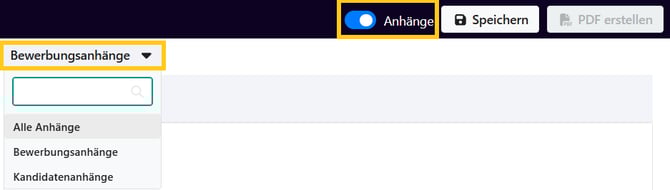
Information from the attachments can then be used to supplement the Web Exposé with additional details that are not automatically transferred from the candidate profile
Once the Web Exposé has been finalized, it can be generated as a PDF by clicking the “Create PDF” button. A window will then open, allowing the document to be downloaded.
